> ## Documentation Index
> Fetch the complete documentation index at: https://docs.trylora.app/llms.txt
> Use this file to discover all available pages before exploring further.
# Share GA4 access for Trylora reports
> Grant Trylora property-level Analyst access for engagement, add-to-cart, and sales reporting.
Trylora can prepare reports that compare how shoppers who use virtual try-on move through your storefront. Grant `admin@trylora.app` access to the relevant Google Analytics 4 (GA4) property so we can analyze the data that your site already collects.
## What you get
* **Trylora engagement:** See successful try-on and animation activity when Trylora events reach GA4.
* **Add-to-cart behavior:** Compare add-to-cart activity for shoppers who engage with Trylora.
* **Sales performance:** Review purchases, conversion rate, transactions, and revenue when GA4 ecommerce measurement is configured.
* **Website engagement:** Review engagement time, sessions, and product-page activity.
* **Funnel insights:** Identify where shoppers continue or leave between product discovery, Trylora use, cart, and purchase.
These reports show relationships in your GA4 data. They do not prove that Trylora caused a change. Use a controlled experiment when you need to measure causal impact.
## Before you start
Confirm the following items before you grant access:
* You have the **Administrator** role at the GA4 account or property level.
* You selected the GA4 property that measures the storefront you want analyzed.
* GA4 receives your storefront's ecommerce events, including `add_to_cart` and `purchase`, when you want cart and sales reporting.
* Trylora success events reach the same GA4 property when you want to compare Trylora engagement with storefront outcomes.
GA4 access lets Trylora analyze data that is already collected. It does not install or repair tracking. If required events are missing, the report cannot include those measurements.
### Confirm Trylora event delivery
The setup depends on your Installation Path:
* **Generic Embed:** Enable GA4 delivery and verify `trylora_tryon_succeeded` and `trylora_animation_succeeded`. See [Generic Embed analytics](/custom-storefronts/analytics).
* **Shopify Theme Installation:** Configure the optional Shopify GA4 connection and confirm it with a new storefront event. See [Connect Shopify to Google Analytics](/shopify/analytics).
## Grant property-level access
Grant access only to the property you want Trylora to analyze. Do not grant account-level access.
Sign in at [analytics.google.com](https://analytics.google.com). Use the property selector in the top-left corner to choose the property for the correct storefront.
Select **Admin**. Under **Property**, select **Property access management** or **Access Management**.
Select **+**, then **Add users**. Enter `admin@trylora.app` and keep **Notify new users by email** selected.
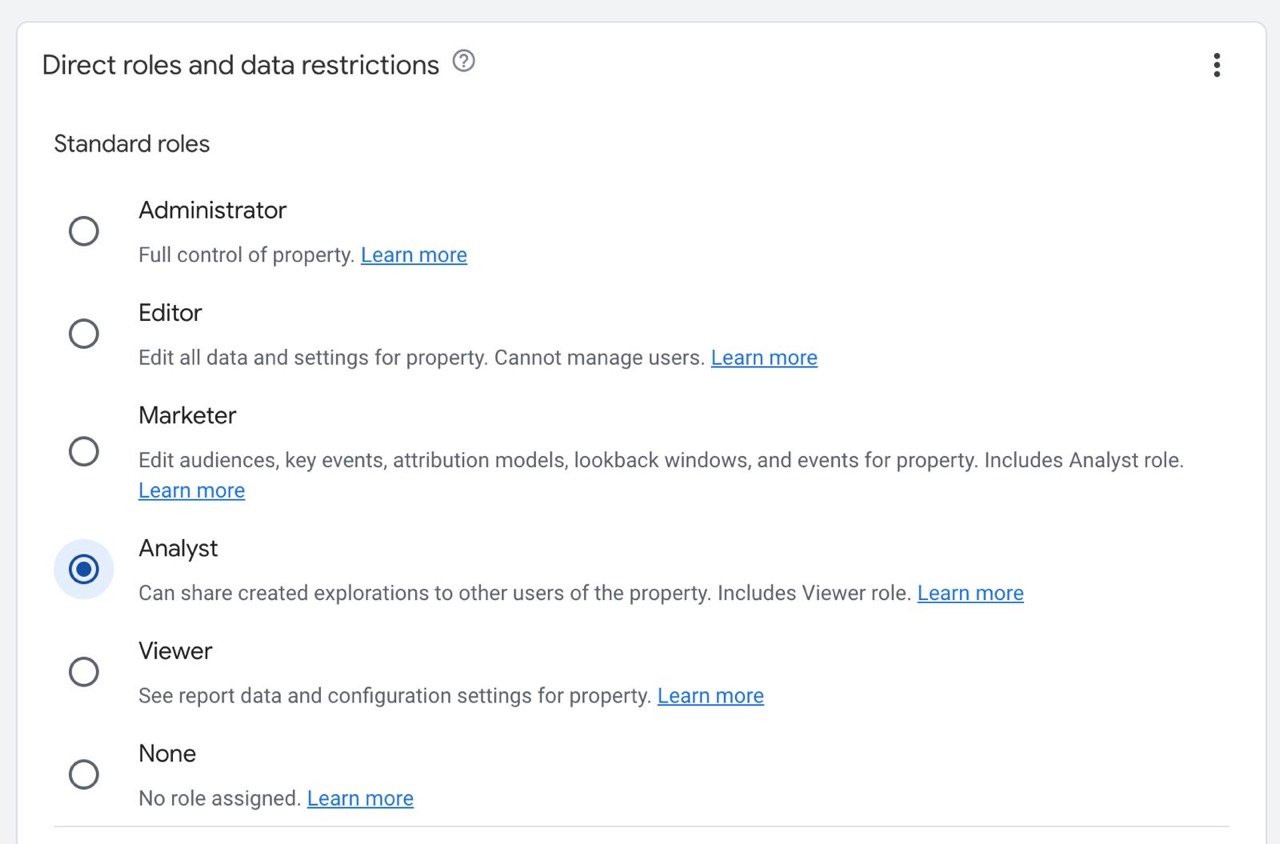
Under **Direct roles**, select **Analyst**. Do not select **Administrator**, **Editor**, or **Marketer**.
Leave **No Revenue Metrics** unselected when you want sales and revenue included. Cost metrics are not required for standard Trylora reporting.
Select **Add**.
 ## Why Trylora requests Analyst access
The **Analyst** role includes Viewer access and allows Trylora to create and share explorations for the selected property. It does not provide user-management permission or full administrative control.
You do not need to grant:
* Account-level access
* The **Administrator**, **Editor**, or **Marketer** role
* Access to another GA4 property
Do not enable **No Revenue Metrics** if you expect the report to include revenue. That data restriction prevents the invited account from viewing revenue metrics.
## Send the reporting details
After you add access, send your Trylora contact:
* The GA4 property name and property ID
* The date when Trylora became available on the storefront
* The reporting period you want analyzed
* Any launches, campaigns, products, or questions you want included
* Confirmation that Trylora success events reach this GA4 property
## Verify or revoke access
Open **Admin → Property access management** and search for `admin@trylora.app`. Confirm that the direct role is **Analyst** and that the correct property is selected.
You remain in control of the property. You can change the role or remove access from the same page at any time.
## Troubleshoot access and reporting
### You cannot add a user
Confirm that your Google account has the **Administrator** role for the selected account or property. Ask an existing GA4 administrator to add Trylora if you do not have that role.
### The storefront property does not appear
Confirm that you signed in with the correct Google account. Use the property selector to check the available accounts and properties, or ask the property owner to grant your account access.
### Revenue is missing from the report
Confirm that **No Revenue Metrics** is not enabled for `admin@trylora.app`. Then verify that GA4 receives `purchase` events with revenue data.
### Trylora engagement is missing from the report
Verify the success events for your Installation Path. Follow [Generic Embed analytics](/custom-storefronts/analytics) or [Connect Shopify to Google Analytics](/shopify/analytics), then confirm that the events reach the same GA4 property used for the report.
## Data included in Trylora events
Trylora Merchant Analytics events contain the product URL and, when available, the product title. They do not contain the shopper's photo, generated media, or internal job identifier. See [Analytics events](/reference/analytics-events) for the event names and payload fields.
## Google Analytics references
* [Add, edit, and delete Analytics users and user groups](https://support.google.com/analytics/answer/9305788)
* [Google Analytics roles](https://support.google.com/analytics/answer/9356045)
## Why Trylora requests Analyst access
The **Analyst** role includes Viewer access and allows Trylora to create and share explorations for the selected property. It does not provide user-management permission or full administrative control.
You do not need to grant:
* Account-level access
* The **Administrator**, **Editor**, or **Marketer** role
* Access to another GA4 property
Do not enable **No Revenue Metrics** if you expect the report to include revenue. That data restriction prevents the invited account from viewing revenue metrics.
## Send the reporting details
After you add access, send your Trylora contact:
* The GA4 property name and property ID
* The date when Trylora became available on the storefront
* The reporting period you want analyzed
* Any launches, campaigns, products, or questions you want included
* Confirmation that Trylora success events reach this GA4 property
## Verify or revoke access
Open **Admin → Property access management** and search for `admin@trylora.app`. Confirm that the direct role is **Analyst** and that the correct property is selected.
You remain in control of the property. You can change the role or remove access from the same page at any time.
## Troubleshoot access and reporting
### You cannot add a user
Confirm that your Google account has the **Administrator** role for the selected account or property. Ask an existing GA4 administrator to add Trylora if you do not have that role.
### The storefront property does not appear
Confirm that you signed in with the correct Google account. Use the property selector to check the available accounts and properties, or ask the property owner to grant your account access.
### Revenue is missing from the report
Confirm that **No Revenue Metrics** is not enabled for `admin@trylora.app`. Then verify that GA4 receives `purchase` events with revenue data.
### Trylora engagement is missing from the report
Verify the success events for your Installation Path. Follow [Generic Embed analytics](/custom-storefronts/analytics) or [Connect Shopify to Google Analytics](/shopify/analytics), then confirm that the events reach the same GA4 property used for the report.
## Data included in Trylora events
Trylora Merchant Analytics events contain the product URL and, when available, the product title. They do not contain the shopper's photo, generated media, or internal job identifier. See [Analytics events](/reference/analytics-events) for the event names and payload fields.
## Google Analytics references
* [Add, edit, and delete Analytics users and user groups](https://support.google.com/analytics/answer/9305788)
* [Google Analytics roles](https://support.google.com/analytics/answer/9356045)